Showing posts with label HTML. Show all posts

Tuesday, March 9, 2021

Centering horizontally and vertically

<div id="parent">
    <div id="child">hello world</div>
</div>
Centering with margin, it has to be done at child level:
#parent {
    width: 50vw;
    height: 50vh;
    background-color: gray;
    display: flex;
}
#child {
    margin: auto; 
}
Try it at: https://jsfiddle.net/xd7uwgn8/

It's better if it is done at the parent level, the parent should be able to control the child elements:
#parent {
    width: 50vw;
    height: 50vh;
    background-color: gray;
    
    display: flex;
    justify-content: center;
    align-items: center;
}
#child {
}
Try it at: https://jsfiddle.net/xd7uwgn8/2/

Another good thing if it is done at parent level, creating unnecessary div+margin:auto for the content could be avoided:
<div id="parent">
    hello world
</div>
Try it at: https://jsfiddle.net/xd7uwgn8/3/

Thursday, August 6, 2020

Basic drag and drop (no back-end)

let dropArea;

document.addEventListener('DOMContentLoaded', () => {
    dropArea = document.getElementById('drop-area');

    ['dragenter', 'dragover', 'dragleave', 'drop'].forEach(eventName => dropArea.addEventListener(eventName, preventDefaults, false));
    ['dragenter', 'dragover'].forEach(eventName => dropArea.addEventListener(eventName, highlight, false));
    ['dragleave', 'drop'].forEach(eventName => dropArea.addEventListener(eventName, unhighlight, false));

    dropArea.addEventListener('drop', handleDrop, false);
}, false);


function preventDefaults(e) {
    e.preventDefault();
    e.stopPropagation();
}


function highlight(e) {
    dropArea.classList.add('highlight');
}

function unhighlight(e) {
    dropArea.classList.remove('highlight')
}


function handleDrop(e) {
    const dt = e.dataTransfer;
    const files = dt.files;

    handleFiles(files);
}


function handleFiles(files) {
    // console.log(files);
    // alert(Array.isArray(files)); // false
    // alert(Array.isArray(Object.values(files))); // true
    // alert(Array.isArray([...files])); // true

    // this won't work:
    //      files.forEach(uploadFile);

    [...files].forEach(uploadFile);
}

function uploadFile(file) {
    alert('uploading ' + file.name);
}
<head>


    <script src='index.js'></script>

    <style>
        html {
            box-sizing: border-box;
        }

        *,
        *:before,
        *:after {
            box-sizing: inherit;
        }

        * {
            margin: 0;
            padding: 0;
        }

        #drop-area {
            border: 2px dashed #ccc;
            border-radius: 20px;
            width: 480px;
            font-family: sans-serif;
            margin: 100px auto;
            padding: 20px;
        }

        #drop-area.highlight {
            border-color: purple;
        }

        p {
            margin-top: 0;
        }

        .my-form {
            margin-bottom: 10px; 
        }

        #gallery {
            margin-top: 10px;
        }

        #gallery img {
            width: 150px;
            margin-bottom: 10px;
            margin-right: 10px;
            vertical-align: middle;
        }

        .button {
            display: inline-block;
            padding: 10px;
            background: #ccc;
            cursor: pointer;
            border-radius: 5px;
            border: 1px solid #ccc;
        }

        #fileElem {
            display: none;
        }
    </style>

</head>

<body>

    <div id="drop-area">
        <div id="my-form">
            <p>Upload multiple files with the file dialog or by dragging and dropping images onto the dashed region</p>
            <input type="file" id="fileElem" multiple="multiple" accept="image/*" onchange="handleFiles(this.files)">
            <label for="fileElem" class="button">Select some files</label>
        </div>
    </div>


</body>

Thursday, April 30, 2020

Don't use label display block for radio and checkbox

<div class="form-group">
  <label id="recommend-label" class="label">Would you recommend freeCodeCamp to a friend?</label>
  
    <label><input type="radio" name="recommend" value="definitely">Definitely the greatest tutorial on earth</label>
  
  
    <label><input type="radio" name="recommend" value="maybe">Maybe</label>
  
  
    <label><input type="radio" name="recommend" value="not-sure">Not sure</label>
</div>

<style>
.form-group label:not(.label) {
  display: block;
  background: lightgreen;
  margin: 2px;  
}
</style>


The problem with label display block approach is that it makes the trailing spaces after the label clickable too.


Demo: https://jsfiddle.net/qadxjghy/


To make the label's trailing spaces not clickable, enclosed the label in div. And then change the input's enclosing label display to inline-flex

<div class="form-group">
  <label id="recommend-label" class="label">Would you recommend freeCodeCamp to a friend?</label>
  
    <div>
      <label><input type="radio" name="recommend" value="definitely">Definitely the greatest tutorial on earth</label>
    </div>
  
    <div>
      <label><input type="radio" name="recommend" value="maybe">Maybe</label>
    </div>
  
    <div>
      <label><input type="radio" name="recommend" value="not-sure">Not sure</label>
    </div>

</div>

.form-group label:not(.label) {
  display: inline-flex;
  background: lightgreen;
  margin: 2px;  
}

Output:


Demo: https://jsfiddle.net/qadxjghy/1/


display: inline-block can be used as well:


inline-flex is better, so we can use align-items: baseline to align the baseline of text to the baseline of the radio/checkbox buttons:


display attribute can be removed as well, but you can't set things like margin:


Friday, October 23, 2015

Alignment problem of Firefox that's non-existent on Chrome

Given this html:

<span class="form-search"></span>
<input class="search-query form-control" style="width: 200px" placeholder="Live search"/>


And CSS:

span.form-search {
    position: relative;       
}
span.form-search:before {
    display: block;
    width: 14px;
    height: 14px;
    content: "\e003";
    font-family: 'Glyphicons Halflings';
    background-position: -48px 0;
    position: absolute;
    top:8px;
    left:8px;
    opacity: .5;
    z-index: 1000;
}
input.search-query {
    padding-left:26px;
}

Live code: https://jsfiddle.net/L1pb9km3/

The above display perfectly ok with Chrome, but not on Firefox.

Chrome:


Firefox:


The work-around to make it work on Firefox is simple, just add a float: left to the span.form-search

span.form-search {
    position: relative;   
    float: left;    
}

Live code: https://jsfiddle.net/axjk3xss/

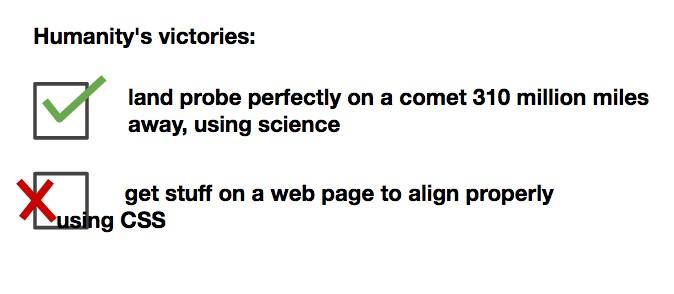
Yes it's easy to land on comet than to properly align stuff on web using CSS.